








Your Phone’s Sleep Settings + Sleep Shield: The Best of Both Worlds
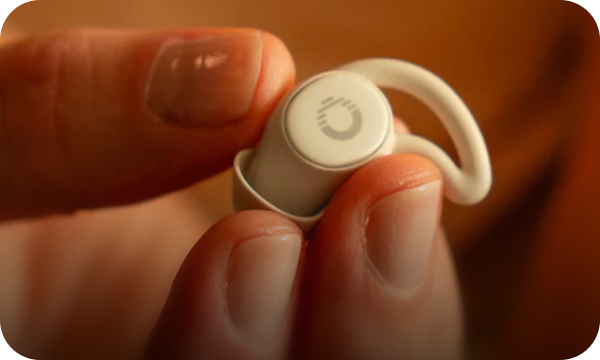
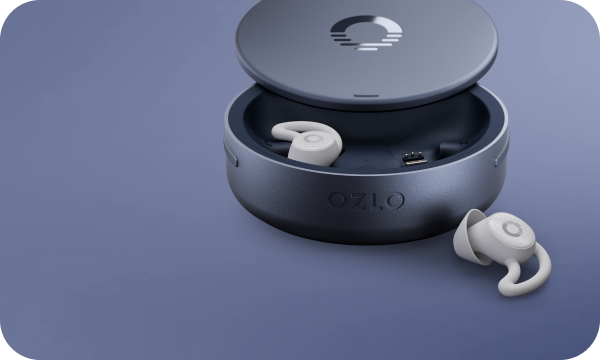
Sleepbuds are designed to help quiet the sounds around you. But what about the sounds coming from your phone? That’s where Sleep Shield, and your phone’s own sleep settings, work together.

What does Sleep Shield do?
Sleep Shield controls whether audio from your phone can interrupt your Sleep Sound during the night.
Your Sleepbuds block streaming audio and notification sounds from other apps once your Sleep Sound is playing.
Other phone audio may interrupt your Sleep Sound.
Why would you want Sleep Shield off?
Maybe you stream a podcast before falling asleep. Maybe you wake up at 3 a.m. and listen to an audiobook to get back to sleep. Or maybe you like scrolling Instagram in the morning before taking your Sleepbuds out.
With Sleep Shield off, you can hear that audio without having to pause your Sleep Sound.
There is one tradeoff: your phone's notification sounds can also come through. Depending on your settings, a text, email or app notification might create a small blip in your masking sound.
Fortunately, your phone already has a way to prevent that.
The best of both worlds
Our recommendation is simple:
Use your phone's sleep notification settings to decide who and what can interrupt you, and use Sleep Shield based on whether you want other audio to be able to play through your Sleepbuds.
That way, you can keep unwanted notifications quiet overnight while still allowing the audio you choose to hear.
And you don't have to block everything. Both iPhone and Android let you create exceptions for the notifications that matter.
On iPhone: Set up Sleep Focus
Apple's Sleep Focus lets you silence notifications automatically during your sleep hours while choosing specific people and apps that are still allowed to reach you. Apple Support

Settings→ Focus→ Sleep
From there, customize:
- People: Choose who can contact you while Sleep Focus is active. NOTE: only notifications will come through from your chosen contacts when you are listening to your Sleep Sound. Phone calls will not break through your Sleep Sound.
- Apps: Choose which apps, if any, can send notifications.
- Schedule: Set Sleep Focus to turn on and off automatically around your normal sleep hours.
- Important interruptions: Review options such as repeated calls or time-sensitive notifications if you want certain urgent alerts to get through. Apple Support
Once you've set it up, your iPhone handles the interruptions for you each night.
Apple's guide to setting up Sleep Focus →On Android: Use Bedtime mode or Do Not Disturb
Android settings vary depending on your phone and Android version, but most devices offer Bedtime mode, Do Not Disturb, or another customizable Mode that can automatically limit notifications during your sleep hours. Google Help

On many Android devices, start with
Settings→ Modes→ Bedtime
You can set your bedtime schedule and customize notification filters to decide which people, apps, alarms and other interruptions are allowed through. Google notes that the exact menus and options can vary by device. Google Help
Google's guide to Bedtime mode and Do Not Disturb →Set it once. Sleep your way.
Think of these two settings as doing different jobs:
If you want complete protection from anything your phone might play overnight, turn Sleep Shield ON.
If you want the flexibility to listen to a podcast before bed, watch something if you wake up, or scroll in the morning without turning off your masking sound, turn Sleep Shield OFF and use your phone's Sleep Focus, Bedtime mode or Do Not Disturb settings to keep unwanted notifications quiet.
A few minutes of setup can give you exactly what you want: the sounds you choose, without the interruptions you don't.


